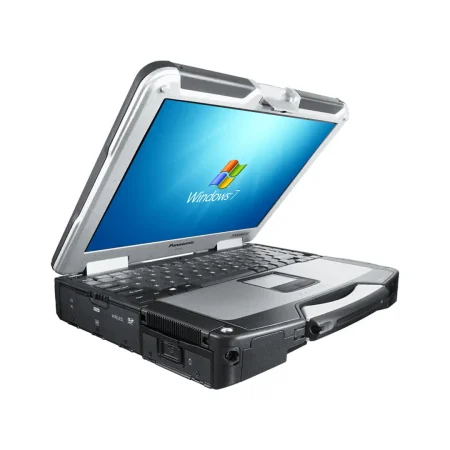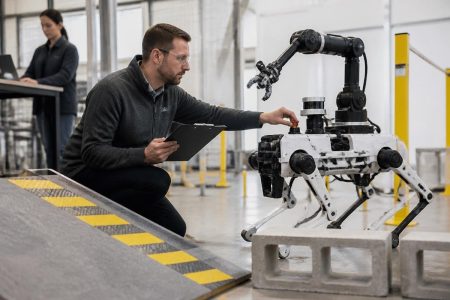

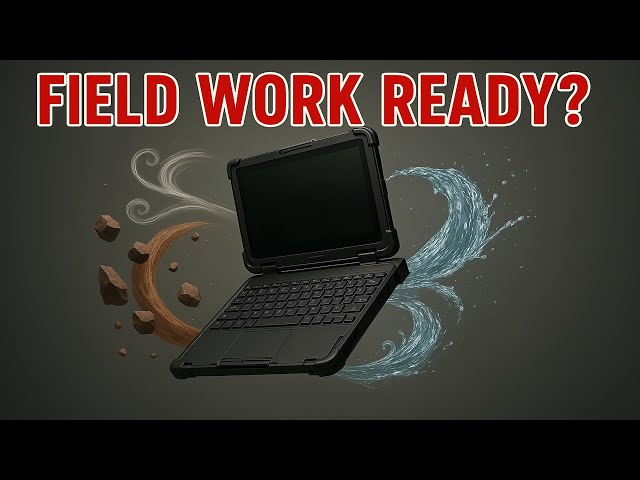
Field teams often work in conditions that ordinary computers were never designed to handle. Dust, vibration, moisture, temperature changes, and accidental drops can quickly damage a standard device. Choosing suitable rugged laptops helps organizations give employees dependable access to applications, reports, maps, and communication tools in demanding locations. However, buyers must look beyond a durable exterior to find a computer that fits the job.
Start With the Working Environment
The right computer depends on where and how it will be used. A technician working inside a service vehicle has different requirements from a construction supervisor moving between an office trailer and an active jobsite.
Before comparing models, document the conditions employees encounter during a normal shift. Consider exposure to dust, rain, heat, cold, vehicle vibration, and the possibility of drops. Buyers should also determine whether the device will be carried by hand, mounted in a vehicle, or placed on machinery.
This assessment helps prevent two costly mistakes: purchasing more protection than the role requires or selecting a computer that cannot withstand daily use.
Understand the Different Ruggedness Levels
Rugged computers are commonly described as semi-rugged, fully rugged, or ultra-rugged. These terms indicate different levels of protection, although specifications can vary among manufacturers.
Semi-rugged computers may be appropriate for warehouses, service vehicles, and occasional outdoor use. Fully rugged devices are generally better suited to construction sites, utilities, public safety, and industrial operations. Ultra-rugged equipment is intended for particularly severe environments where equipment failure could interrupt critical work.
Buyers should examine documented testing instead of relying solely on product labels. Drop resistance, water and dust protection, vibration tolerance, and operating temperature ranges provide a clearer picture of how a device may perform.
Evaluate the Display and Input Options
Screen quality affects whether employees can use a computer comfortably and safely. A bright display with reduced glare is important for outdoor work, especially when employees need to read maps, diagrams, or inspection records in direct sunlight.
Touchscreen functionality can also be useful, but the right configuration depends on the task. Workers who wear gloves may need a screen designed for gloved input. Others may require a stylus for signatures, drawings, or detailed form completion.
Keyboard design matters as well. A backlit keyboard can support work at night or in poorly lit facilities. Sealed keyboards may offer additional protection in dusty or wet environments.
Check Battery Life and Power Options
A strong computer provides little value if it cannot last through a shift. Manufacturer battery estimates should be treated as general guidance because actual runtime depends on screen brightness, wireless connections, software use, and temperature.
For long shifts, consider models with removable batteries, extended-capacity batteries, or hot-swappable power options. Vehicle chargers and docking stations can also help teams maintain power while traveling between locations.
Organizations should calculate battery needs based on actual workflows rather than assuming that every employee will have regular access to an outlet.
Match Performance to the Software
Durability should not come at the expense of usable performance. Buyers must review the requirements of the applications employees use every day.
Basic inspections and reporting may require modest processing power. Geographic information systems, diagnostic programs, engineering files, and video applications may need faster processors, more memory, and greater storage capacity.
The operating system must also support existing business software and security requirements. Confirming compatibility before purchase can prevent deployment delays and unexpected replacement costs.
Review Connectivity and Ports
Field operations depend on dependable communication. Wi-Fi may be sufficient inside a facility, but mobile teams may need cellular connectivity, GPS, Bluetooth, or dedicated antenna options.
Physical ports remain important in many industries. Technicians may need to connect barcode scanners, diagnostic tools, serial devices, external monitors, or other equipment. A thin computer with limited ports might require adapters that are easy to lose or damage.
Create a list of required devices and connections before selecting a model. This simple step can reveal compatibility issues early in the buying process.
Consider Mounts, Docks, and Accessories
A rugged computer frequently operates as part of a larger workstation. Vehicle docks, desktop docks, carrying straps, protective cases, spare batteries, and mounting systems can affect daily usability.
Check whether accessories are available for the selected model and whether they fit existing vehicles or work areas. Organizations purchasing several units should also consider how easily accessories can be replaced or shared.
Calculate the Full Cost of Ownership
Purchase price is only one part of the decision. A less expensive computer may cost more over time if it requires frequent repairs, causes employee downtime, or must be replaced early.
Compare warranty coverage, repair services, expected service life, accessory costs, and upgrade choices. Refurbished equipment may also be worth considering when it comes from a dependable supplier and includes clear condition and warranty information.
The goal is to select a computer that can support employees throughout its planned service life without creating avoidable interruptions.
Choosing field-ready computing equipment requires a close look at the environment, software, power, connectivity, and accessory needs of each team. Businesses ready to compare dependable field-computing options can visit Tough Rugged Laptops and find hardware suited to demanding professional work.